Troubleshooting MIDI
Device not detected
Section titled “Device not detected”- Power on the module first, reconnect the USB cable, and reload Rhythma.
- Use a known data cable and a direct USB port; many charging cables carry no data.
- Close DAWs or utilities that may hold the MIDI port.
- On desktop, use a current Chromium-based browser and choose Connect MIDI again. If access was denied, reset the site’s MIDI permission in browser settings.
- On iOS, connect through the app’s MIDI flow; a normal Safari tab cannot use the Web MIDI path.
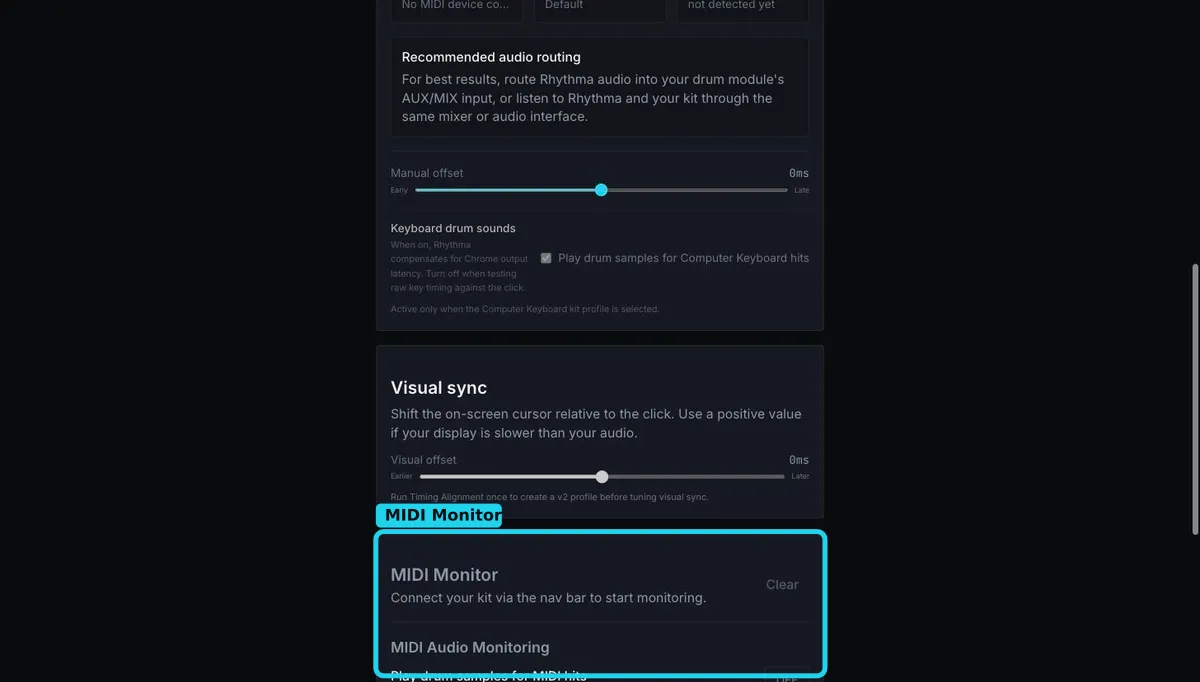
When connected, the device name appears and MIDI Monitor changes to “Hit any pad on your kit to see its MIDI data.”
Wrong pad or no lane response
Section titled “Wrong pad or no lane response”Open Settings → MIDI → MIDI Monitor. If the hit appears as Unmapped, select the correct built-in kit profile. If it is mapped to the wrong pad, use MIDI Learn — Create Custom Profile or re-learn that mapping. Do not use timing offset to repair a mapping problem.
Double or missing hits
Section titled “Double or missing hits”Watch the monitor while making single strokes. Duplicate messages, very low velocities, or leakage from adjacent pads indicate module trigger settings. Adjust threshold, sensitivity, retrigger cancellation, or crosstalk on the drum module. Rhythma intentionally uses the MIDI messages it receives.
Still stuck? Email admin@rhythma.pro.
We use Google Analytics to understand how this site is used. See ourPrivacy and Cookies Policy.